Stage 0 — Foundations
This stage checks four tools that you will use later. If you already know them, skip ahead. If not, try the practice below once.
When to skip this stage
Check these four things. You do not need to memorize commands. You do need to find information and finish each task yourself:
- Use Python to get public data from an API (Application Programming Interface), then find a value in the JSON (JavaScript Object Notation).
- Use Git to copy a project (
clone), create a work line (branch), save a version (commit), and send it online (push). When two changes collide, know what a merge conflict is and what to keep. - Use a CLI (command-line interface) to change folders, create files, and run a Python script.
- Read YAML and JSON. Both are text formats for saving data.
If all four are easy, go straight to Stage 1 — LLM Basics. If one is uncertain, do the main practice here. Open the extra sections only when you need them.
📌 Learning Goals
After this stage, you can:
- Get data from an API with Python and read the needed part of the JSON.
- Run a program from a terminal and find the file it created.
- Recognize a project repository, inspect its version history, and save a version with Git.
- Recognize YAML, JSON, and an API token (secret text that lets a program sign in), and know what must not be shared.
🔑 Core Terms
First learn the tools for running programs and exchanging data. Then see how projects save and share changes online.
| Group | Term | Plain explanation | Use or boundary in this chapter |
|---|---|---|---|
| Programs and execution | Python | A programming language used to write instructions and run programs. | The main exercise uses Python to get data. |
| Terminal | A window for entering and viewing text commands. | Run the main exercise here. | |
| CLI (Command-Line Interface) | An interface for interacting with a program using text commands. | For example, enter a Python command. | |
| Shell | A command interpreter, such as PowerShell or Bash, that interprets and runs commands. | It usually runs in a terminal. | |
| Data and interfaces | API (Application Programming Interface) | An interface that lets programs interact with another program or service according to rules. | Not limited to websites. |
| JSON (JavaScript Object Notation) | A text format for structured data. | The exercise reads API data in JSON; it is not a script. | |
| YAML (YAML Ain’t Markup Language) | Another text data format, often used for configuration. | Indentation matters; it is not a script. | |
| API token | A secret credential, like a key, that lets a program prove its identity. | Do not publish or upload it; the main exercise needs none. | |
| Platform and project | GitHub | A platform for sharing code, tools, teaching materials, and online resources; many open-source projects collaborate there. | Public does not always mean open source; read the use permissions. |
| Git | A tool that records file versions and can run on your own computer. | Git and GitHub are different things. | |
| Repository (Repo) | A place holding a project's files and version history. | This project is a repository. | |
| Explore a project | README | An introductory document that usually explains a project and how to start. | Read it first to find your starting point. |
| License | A document explaining how others may use, change, or share a work. | Check its terms and whether it is open source. | |
| Issue | A project page for discussing a problem, suggestion, or task. | Observe first; you need not post. | |
| Changes and collaboration | Branch | A separate line of work; main is often the shared main line. | You can make changes on your own line first. |
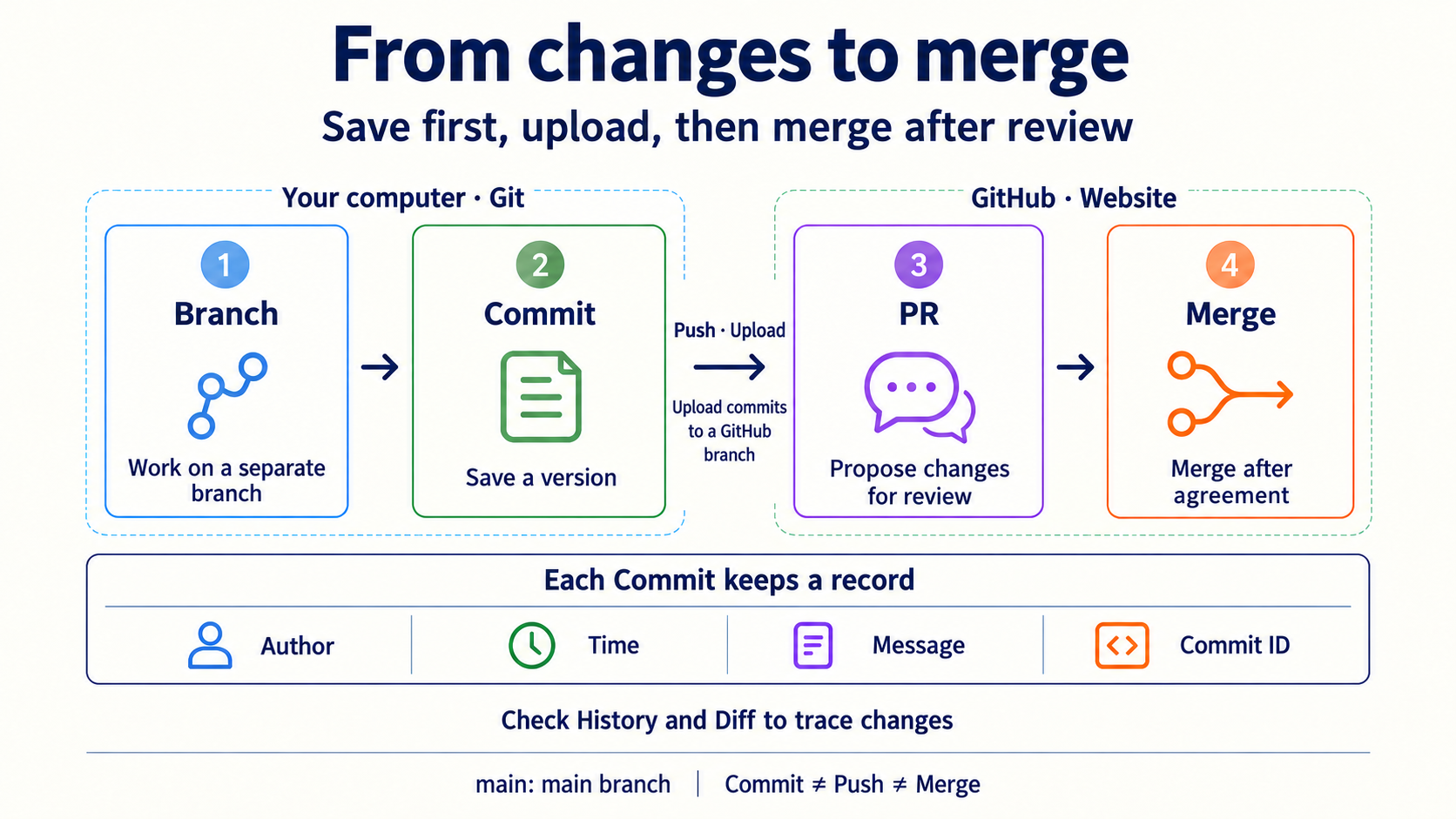
| Commit | Like a labeled project snapshot: it saves selected changes with an author, time, message, and identifier (hash). | Saving in an editor is not a commit; history can branch. | |
| Push | Send local version records to the corresponding branch on GitHub. | This does not automatically merge into main. | |
| Pull Request (PR) | Propose changes for others to review and discuss whether to accept. | Opening a PR does not mean it has been merged. | |
| Merge | Combine changes from one line of work into another. | After review and agreement, changes can be merged into main. |
History is the project's saved version record; it can branch and is not necessarily a straight timeline. A Diff compares content before and after changes. A commit's author name, time, message, and identifier help trace it, but the author label alone does not prove identity.
For example: fix a typo on a branch → make a local commit → push the branch to GitHub → open a PR for review → merge into main after agreement. Each step has a different purpose; a PR does not automatically merge.
For more, see GitHub's introduction, licensing guidance, and Git version history.
Put your edited document on GitHub
You want to edit a document. How do you share the change?
- Branch: start your own line of changes.
- Edit and save: change the document, save it, and check it.
- git add / Staging Area: select changes for the next record.
- Commit: save a version record on your computer.
- Push: upload versions to a GitHub branch.
- PR → Review → Merge: propose changes, check them, then merge into
main. - Pull: bring GitHub updates back to your computer.
Want to try it? See the commands
Use your own practice repository. Follow the setup guide to install Git and connect to GitHub.
Clone: download the files and version history to your computer; follow the official steps.
origin names the GitHub repository in this example. In your terminal, enter the project folder and start on main.
git switch -c docs/my-first-update
After creating the branch, edit and save README.md, then run:
git status
git diff
git add README.md
git commit -m "docs: clarify the introduction"
git push -u origin docs/my-first-update
On GitHub, open a PR from docs/my-first-update into main. Review means checking the changes. You can check your own practice project yourself; follow the approval rules for a shared project.
After the PR is merged, use git status to check for uncommitted changes. If there are none, run:
git switch main
git pull --ff-only
No write permission on someone else’s project? Fork it to create a copy under your account; see the official guide.
Read a real change
Find the numbered red boxes in our project screenshots. On a phone, open the full-size image to zoom.
1. Commit: one version record. Original commit
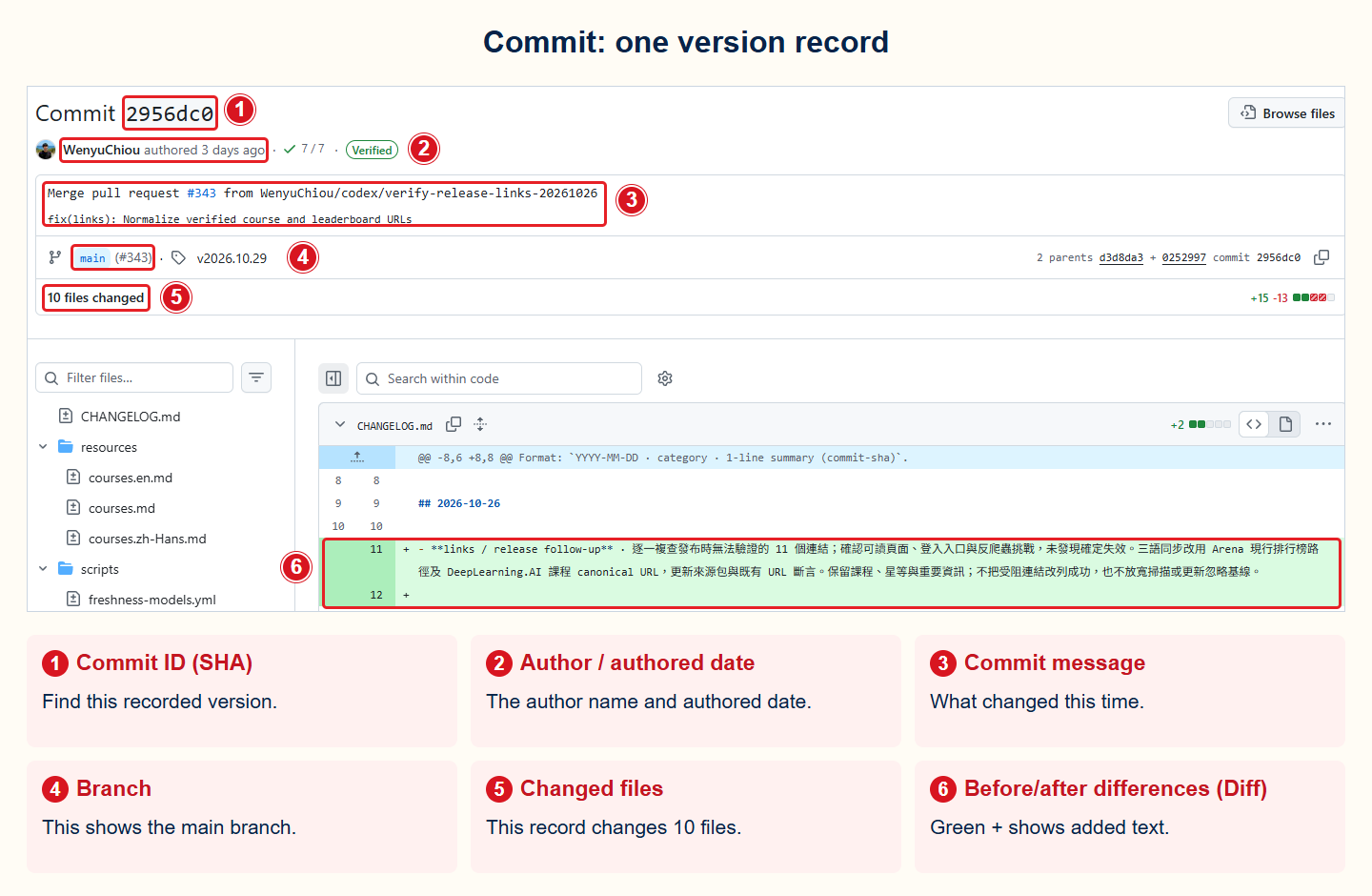
- ① Commit ID (SHA): Find this recorded version.
- ② Author / authored date: The author name and authored date.
- ③ Commit message: What changed this time.
- ④ Branch: This shows the main branch.
- ⑤ Changed files: This record changes 10 files.
- ⑥ Before/after differences (Diff): Green + shows added text.
2. PR: ask for changes to be checked. Original PR #343
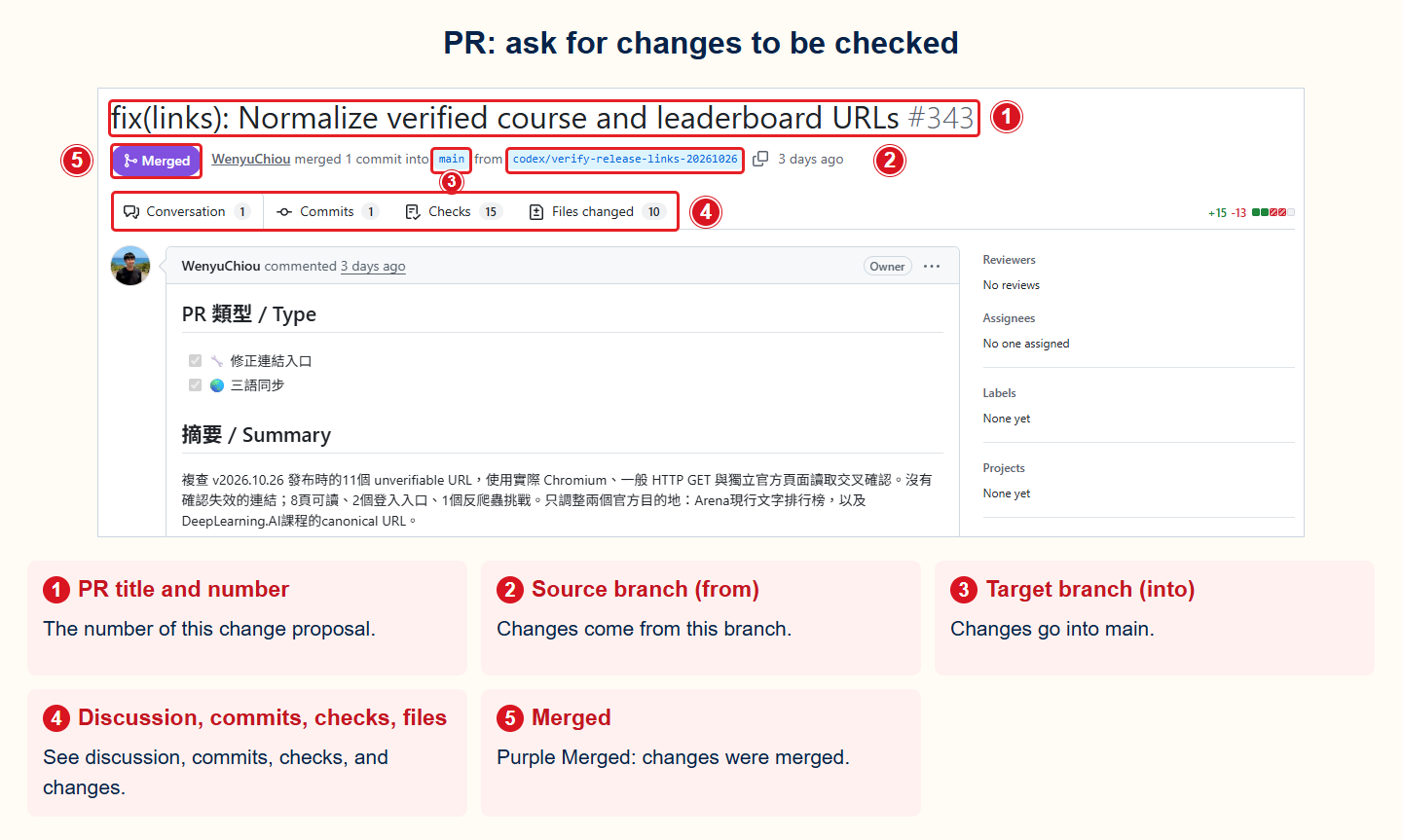
- ① PR title and number: The number of this change proposal.
- ② Source branch (from): Changes come from this branch.
- ③ Target branch (into): Changes go into main.
- ④ Discussion, commits, checks, files: See discussion, commits, checks, and changes.
- ⑤ Merged: Purple Merged: changes were merged.
3. Issue: report a problem. Original issue #314
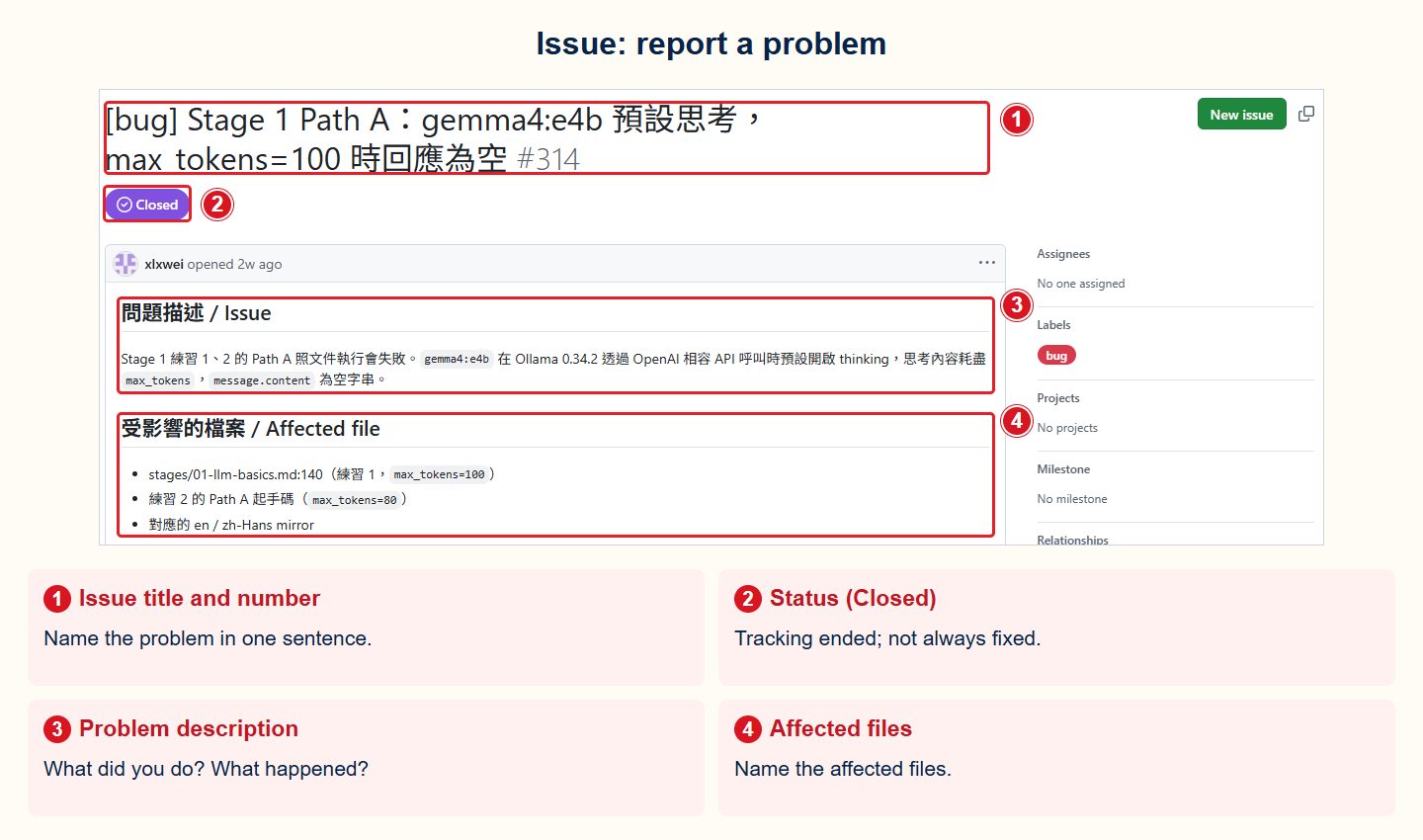
- ① Issue title and number: Name the problem in one sentence.
- ② Status (Closed): Tracking ended; not always fixed.
- ③ Problem description: What did you do? What happened?
- ④ Affected files: Name the affected files.
A few useful differences
- The Author wrote the change; the Committer recorded the version. They may be different.
- Commit time is not push time.
- Red boxes are teaching marks; a red minus in a diff means deletion.
- Checks shows automated results; Conversation shows discussion; Files changed shows differences.
- A PR number and a commit ID identify different things.
🛠 Hands-on Practice: Build a Small GitHub Data Tool
Outcome: Have Python get public data from GitHub, show it on screen, write it to a file, and save the result with Git. This main practice needs no account, API token, or paid service.
First spend five minutes observing in a browser: open this project, find its README, License, and Issues, then open its commit history. Choose a commit and inspect its author, time, message, identifier, and diff. A publicly displayed author email is a label in the record, not a login credential, and cannot alone verify the author’s identity. You do not need to create an Issue or PR.
1. Create the program
Create a new folder. Save the following as github_profile.py:
import json
import sys
from pathlib import Path
from urllib.request import Request, urlopen

if hasattr(sys.stdout, "reconfigure"):
    sys.stdout.reconfigure(encoding="utf-8", errors="replace")

url = "https://api.github.com/users/torvalds"
request = Request(url, headers={"User-Agent": "stage-0-practice"})

with urlopen(request, timeout=10) as response:
    profile = json.load(response)

result = f"{profile['login']} has {profile['followers']} followers"
print(result)
Path("result.txt").write_text(result + "\n", encoding="utf-8")
An API is an entry that lets a program get data. JSON is the data format received this time.
2. Run the program
In a terminal, enter that folder and run:
python github_profile.py
The screen shows the account and follower count. The folder also gets result.txt. The count changes, so your screen does not need to match someone else's.
3. Save the result with Git
git init
git add github_profile.py result.txt
git commit -m "Add GitHub profile checker"
If Git asks for your name or email the first time, follow the prompt and run git commit again. This information is an author label for the version, not a password.
✅ Completion Check
- The terminal shows a GitHub account and follower count.
-
result.txtcontains the same result. -
git log --onelineshows the commit you just made, and you can find a change and its Diff in the project History. - The program and commit contain no password or API token.
When all four are done, go to Stage 1 — LLM Basics. If you are stuck, open the section below that matches the problem. You do not need to read everything.
⏱️ Time, environment, and why this stage exists
Time: If all of this is new, allow 1–2 weeks, about 5–15 hours. If you already know some parts, practice only what is new.
Environment: Prepare a supported Python 3, Git, a text editor, and a terminal. A terminal is a window for typing text commands. On Windows, use PowerShell. On macOS or Linux, use the system terminal.
First check that the tools run:
python --version
git --version
Later AI-agent lessons use Python, Git, the command line, and configuration files. Stage 0 does not teach everything. It helps you find what is unfamiliar and points you to a place to learn it.
🧰 Extra practice: Python, Git, command line, and YAML/JSON
Do only the items you do not know yet:
- Python: Replace
torvaldsin the main-practice URL with your own GitHub account or another public account. Check that the program still readsloginandfollowers. - Git: Create a new branch (a work line that does not directly change the original version), change the output text, and make another commit. Then put the practice in your own remote Git project and run
git push. - Command line: Create
src,tests, anddocsfolders. Run the main practice from different paths and find whereresult.txtwas actually written. - JSON: Save the API response to a file. Find the
name,public_repos, andfollowersfields. - YAML: Create a small configuration file with
usernameandoutput_file. Practice indentation, strings, and Boolean values. YAML cares about spaces, so do not indent with Tab.
When an error appears, read the last line first. Then check the current folder, file name, and Python version. Change one thing at a time so you know which change helped.
🔐 Optional: try GitHub API authentication safely
The main practice needs no token. A token is secret text that lets GitHub recognize you. Do this only if you want to understand a signed-in API.
- Follow GitHub's official guide to create a fine-grained personal access token. “Fine-grained” means you can grant only the permissions you need.
- Use the shortest useful expiration. Add no extra permissions.
GET /userdoes not require a permission for a fine-grained token. - Put the token in the
GITHUB_TOKENenvironment variable. An environment variable is a temporary place where a computer holds data for a program. Never write the token in Python, Markdown, screenshots, terminal history, or a Git commit. - Call
https://api.github.com/usertwice. The first call has no token and should return401, meaning you are not signed in. The second call has the token and should return200, meaning GitHub accepted the request. - When finished, revoke the token in GitHub settings and clear the environment variable.
Bash can avoid showing the input on screen:
read -s GITHUB_TOKEN && export GITHUB_TOKEN
curl -sS -o /dev/null -w "No token: %{http_code}\n" \
  -H "Accept: application/vnd.github+json" \
  https://api.github.com/user
curl -sS -o /dev/null -w "With token: %{http_code}\n" \
  -H "Authorization: Bearer $GITHUB_TOKEN" \
  -H "Accept: application/vnd.github+json" \
  https://api.github.com/user
unset GITHUB_TOKEN
PowerShell 7.1 and later can do this:
$env:GITHUB_TOKEN = Read-Host -MaskInput "Paste token"
$withoutToken = Invoke-WebRequest -Uri https://api.github.com/user `
  -Headers @{ Accept = "application/vnd.github+json" } `
  -SkipHttpErrorCheck
$withToken = Invoke-WebRequest -Uri https://api.github.com/user -Headers @{
  Authorization = "Bearer $env:GITHUB_TOKEN"
  Accept = "application/vnd.github+json"
} -SkipHttpErrorCheck
"No token: $($withoutToken.StatusCode)"
"With token: $($withToken.StatusCode)"
Remove-Item Env:GITHUB_TOKEN
A token is like a temporary key used by a program. Anyone who gets it may act as you. Fewer permissions and a shorter expiration are safer.
🗺️ Terms and the agent landscape
- CLI (command-line interface): Type text commands in a terminal to control a computer.
- API (application programming interface): An entry that lets two programs exchange data using fixed rules.
- JSON/YAML: Two text formats for structured data. JSON is common in APIs. YAML is common in configuration files.
- Git: A tool that records file versions. A commit is one version snapshot with a note.
For other unfamiliar words, check the glossary. To see why an agent may appear in a terminal, a chat app, or a device, read the Agent Landscape. Neither is required before the main practice.
🎯 Curated Learning Resources
Use an entry that matches the skill you need. You do not need to read all 18 resources.
Learning resources and GitHub verification guidance checked: 2026-08-27 UTC
Recommendation is the learning priority, not a GitHub popularity number. Under the project rules, ⭐⭐⭐⭐⭐ means “you will get stuck without it”; everything below is supplemental, so it honestly uses ⭐⭐⭐⭐ (strongly recommended) or ⭐⭐⭐ (solid reference), without fake five-star ratings.
| Topic | Resource | Who it's for | Recommendation | Why recommended / Notes |
|---|---|---|---|---|
| Python | Python Crash Course | Want to follow a book from the beginning | ⭐⭐⭐⭐ | Code and exercises are free; the complete book must be purchased. |
| Real Python | Know a little and want to look up one topic | ⭐⭐⭐⭐ | Articles are grouped by topic, so they are easy to find when needed. | |
| Corey Schafer YouTube | Like English videos | ⭐⭐⭐ | Uses videos to move from basic syntax to practical use. | |
| Boot.dev | Like learning by doing | ⭐⭐⭐ | Some content is free; the complete backend path is paid. | |
| Python official Traditional Chinese tutorial | Finished the first exercise and want correct syntax | ⭐⭐⭐⭐ | Official reference material; it expects some programming knowledge. | |
| Git | Pro Git book | Want to understand Git fully | ⭐⭐⭐⭐ | Free, complete reference book. |
| Atlassian Git Tutorials | Want to understand branch, merge, and work order with pictures | ⭐⭐⭐⭐ | Common workflows explained with diagrams. | |
| Pro Git — Undoing Things | Made a Git mistake and want to recover safely | ⭐⭐⭐⭐ | Explains which actions can lose data before showing how to recover. | |
| git-flight-rules | Need more answers than the basics give | ⭐⭐⭐ | Collects more Git problems and ways to handle them. | |
| CLI / Shell | The Art of Command Line | Want to learn the command line in order | ⭐⭐⭐⭐ | Goes from beginner commands to more advanced use. |
| Microsoft Learn — PowerShell | Use Windows and want to start from the first step | ⭐⭐⭐⭐ | Microsoft's official PowerShell beginner course. | |
| tldr pages | Only want to see how one command is used | ⭐⭐⭐⭐ | Short, copyable examples explain common commands. | |
| REST API | MDN — HTTP | Want to know how an API sends data | ⭐⭐⭐⭐ | Mozilla's maintained reference for HTTP. |
| Postman Learning Center | Want to try an API with a graphical tool | ⭐⭐⭐⭐ | See sent requests and received data without writing code first. | |
| HTTPie | Want to call an API from the command line | ⭐⭐⭐ | Commands are often easier to read than raw curl commands. | |
| YAML / JSON | YAML official site | Need to check the correct YAML syntax | ⭐⭐⭐ | Official entry point for syntax and the formal specification. |
| JSON introduction | Meeting JSON for the first time | ⭐⭐⭐⭐ | Short examples explain how JSON holds data. | |
| jq | Want to organize JSON from the command line | ⭐⭐⭐⭐ | Filters and organizes data returned by an API. |
✅ Done with Stage 0? Continue to Stage 1 — LLM Basics to make your first LLM API call and learn about token, context window, and cost estimation.